Performance
I noticed that on iteration 3, it failed to render and move the fractal. On a blog post (https://medium.com/the-research-nest/measuring-the-performance-of-your-python-program-3d19fd759813, https://medium.com/the-research-nest/optimizing-memory-usage-in-python-e8a30e0dddd3), I found several ways to start measuring performance.
Measure memory usage
1 of those ways is to use the package ‘sys’ that measures memory usage.
    import sys

    def draw_rhombohedron():
        rhombohedrons = generate_rhombohedron(0, 0, 0, 1, max_level)

        memory_used_bytes = sys.getsizeof(rhombohedrons) # know size of rhombohedrons array
        memory_used_kb = memory_used_bytes / (1024)
        print(f'Memory used by rhombohedrons: {memory_used_kb:.2f} KB')

        # ...code below
These were the outcomes:
| max_level | size |
|---|---|
| 0 | 0.06 KB |
| 1 | 0.24 KB |
| 2 | 3.62 KB |
| 3 | 66.90 KB |
It makes sense that at level 1 it takes up less memory than at level 2, because that’s when a lot more rhombohedrons are added. Only this number increase dramatically!
Optimization
Different articles gave different techniques how to optimize in Python.
- Maybe using a generator with yield
yield is a keyword in Python. It works like a return, but a special one. If it finds something, it sends it and then continues in the loop. It remembers where it left off in the loop and continues. This is different from ordinary functions that start over every time you call them.
- NumPy? -> Python library that works with arrays, to make quick & complex calculations.
- import numpy as np
- written in C
- np.array() → place around an array to optimize
- Change Matplotlib by other library like PyOpenGL, Panda3D, VisPy → more efficient 3d rendering (https://medium.com/@alexeyyurasov/3d-modeling-with-python-c21296756db2)
I tried using PyOpenGL with PyGame instead of Matplotlib. But the computer was running slower. When I asked this in forums, shaders was named among other things so that it can be run on the GPU instead of the CPU. At the moment, it seems very complicated to work with this.
    # basic pygame window setup
    import pygame

    pygame.display.set_caption("Menger Sponge")
    screen = pygame.display.set_mode((600,600))

    while True:
        for event in pygame.event.get():
            if event.type == pygame.QUIT:
                pygame.quit()
                exit()

        #update stuff
        screen.fill((255,255,255))
        # draw stuff

        pygame.display.update()
- Maybe coding in C for faster results?? -> Python is slower than compiled languages like C++ or Java, but it is simpler to use & rapid development
I was also thinking of maybe not drawing all the faces, but only if they are in the face of the larger 3d shape. That way internal faces that you don’t see anyway can be removed. That way, less has to be drawn and you can still see the shape. I have no idea how to do this.
Conclusion
The limiting factor of rendering fractals is the speed of the graphics rendering. This is something I had encountered before, so wasn’t surprised when it was rendering very slow at iteration/level 3. But I should be able to find a solution to it… because when we want to add interaction, it must be fast enough.
Blender’s Python API
First, I drew a cube using a tutorial (https://www.youtube.com/watch?v=mN3n9b98HMk), then made a menger sponge by combining the code from https://blenderartists.org/t/menger-sponge/605195/7 (updated some items according to new version of blender) and my Python menger sponge code.
It was easy to change the cube and menger sponge code to a rhombohedron, as I had already created the code files in Python (see last week). Although I had a few errors, they were easy to solve because they were clearly described in the ‘terminal’.
Have also already looked up some sources on what things to watch out for when making something in blender for 3d printing, but need to read up further on this.
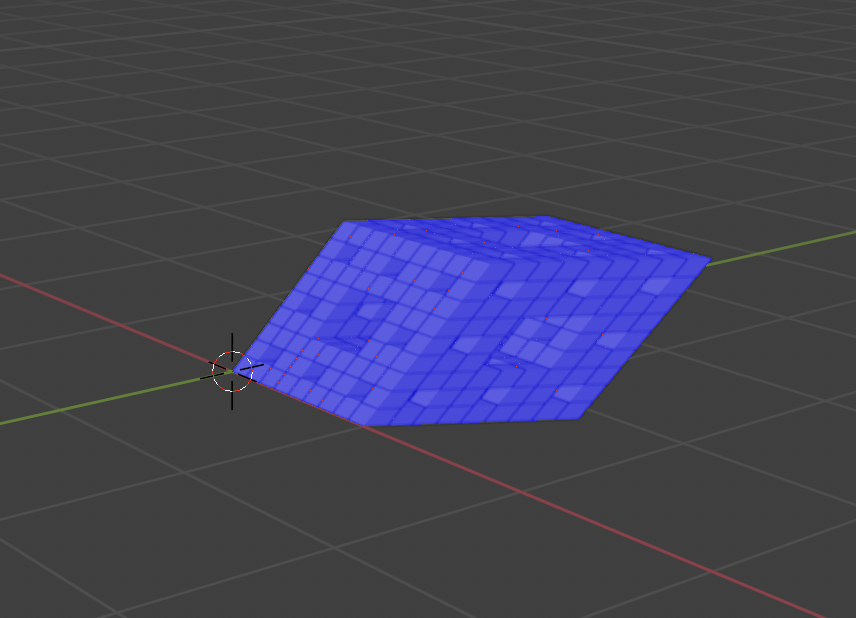
Also, the rhombohedrons are now all separate and do not form 1 mesh (see image below). I asked this on a forum if people know how to put this into 1 mesh like the menge sponge where a cube primitive is used.
--- update 1 February 2025 ---
I’m from the future here for a while, as there was another step-by-step here, but had not noted it down below. Hence a step-by-step plan to create a rhombohedron in blender’s python api.
Step by step
1. Setup project
-
Install Blender (https://www.blender.org/download/)
-
When you open Blender, you will see some shapes, remove them by typing A + X + D.
-
At the top of the navigation bar, click ‘scripting’.
-
Import bpy module
import bpyThis module allows Python to interact with Blender.
2. Write down the coordinates of the vertices & faces
We use the formula for generating a rhombohedron where the vectors e1, e2 & e3 arise from the point (0, 0, 0). Thus, all the vertices can be calculated (see in a previous blog post).
import math #don't forget to import math - else error: NameError: name 'math' is not defined.

theta = math.pi/3

origin_vertices = [
    [1, 0, 0], # e1
    [math.cos(theta), math.sin(theta), 0], # e2
    [math.cos(theta), (math.cos(theta) - (math.cos(theta) ** 2))/math.sin(theta), (math.sqrt(1 - 3 * math.cos(theta) ** 2 + 2 * math.cos(theta)**3))/math.sin(theta)] # e3
]

vertices = [
    [0,0,0],
    origin_vertices[1],
    [origin_vertices[0][0] + origin_vertices[1][0], origin_vertices[0][1] + origin_vertices[1][1], origin_vertices[0][2] + origin_vertices[1][2]],
        origin_vertices[0],
        origin_vertices[2],
    [origin_vertices[1][0] + origin_vertices[2][0], origin_vertices[1][1] + origin_vertices[2][1], origin_vertices[1][2] + origin_vertices[2][2]],
    [origin_vertices[0][0] + origin_vertices[1][0] + origin_vertices[2][0], origin_vertices[0][1] + origin_vertices[1][1] + origin_vertices[2][1], origin_vertices[0][2] + origin_vertices[1][2] + origin_vertices[2][2]],
    [origin_vertices[0][0] + origin_vertices[2][0], origin_vertices[0][1] + origin_vertices[2][1], origin_vertices[0][2] + origin_vertices[2][2]]
]

faces = [
    (0,1,2,3),
    (0,3,7,4),
    (4,5,6,7),
    (1,2,6,5),
    (2,3,7,6),
    (0,1,5,4),
]

edges = []
3. Create a mesh object
Now we do not yet see our points, so we have not yet added them to our ‘canvas’. Code from https://www.youtube.com/watch?v=mN3n9b98HMk
mesh_data = bpy.data.meshes.new("rhombohedron_data")
mesh_data.from_pydata(vertices, edges, faces)

mesh_obj = bpy.data.objects.new("rhombohedron_object", mesh_data)

bpy.context.collection.objects.link(mesh_obj)
4. Change faces
Run the script by clicking the play button (or option + P). We see our rhombohedron.
But… we need to make sure the faces are oriented correctly, as this makes a difference when rendering shadows & light and so on. To find out if the faces are correctly placed, follow these steps:
- Click on your shape. You will now see an orange border.
- Click edit mode.
- Click face orientation.
Turn your shape around and see if the outer faces are all blue. Are all your faces blue? Then you may proceed to step 5. Otherwise, place the vertices in the faces in the other direction.
Tip: turn on developer mode to see the indices.
→ To turn it on: edit > preferences > interface > display > developer extras.
To check, run your script again (first remove everything from canvas (make sure you’re in object mode): A + X + D and click on play button). If the face changes red and blue, then the order of your vertices in the faces is not quite right.
5. Draw function
Let’s write what we are drawing now into a function with more flexible values.
def create_rhombohedron(new_x, new_y, new_z, new_size):
    vertices = [
                [new_x, new_y, new_z],
                [new_x + new_size * origin_vertices[1][0], new_y + new_size * origin_vertices[1][1], new_z + new_size * origin_vertices[1][2]],
                [new_x + new_size * (origin_vertices[0][0] + origin_vertices[1][0]), new_y + new_size * (origin_vertices[0][1] + origin_vertices[1][1]), new_z + new_size * (origin_vertices[0][2] + origin_vertices[1][2])],
                [new_x + new_size * origin_vertices[0][0], new_y + new_size * origin_vertices[0][1], new_z + new_size * origin_vertices[0][2]],
                [new_x + new_size * origin_vertices[2][0], new_y + new_size * origin_vertices[2][1], new_z + new_size * origin_vertices[2][2]],
                [new_x + new_size * (origin_vertices[1][0] + origin_vertices[2][0]), new_y + new_size * (origin_vertices[1][1] + origin_vertices[2][1]), new_z + new_size * (origin_vertices[1][2] + origin_vertices[2][2])],
                [new_x + new_size * (origin_vertices[0][0] + origin_vertices[1][0] + origin_vertices[2][0]), new_y + new_size * (origin_vertices[0][1] + origin_vertices[1][1] + origin_vertices[2][1]), new_z + new_size * (origin_vertices[0][2] + origin_vertices[1][2] + origin_vertices[2][2])],
                [new_x + new_size * (origin_vertices[0][0] + origin_vertices[2][0]), new_y + new_size * (origin_vertices[0][1] + origin_vertices[2][1]), new_z + new_size * (origin_vertices[0][2] + origin_vertices[2][2])]
    ]
    # ...more code below

create_rhombohedron(0,0,0,1) # call function
6. Recursive function
Let’s turn the rhombohedron into a fractal by adding a recursive function. We copy this code from our rhombohedron fractal demo from python.