Today I want to be able to focus well, because I notice that because it is all new to me, I experience too little structure and therefore find it harder to think of smaller intermediate steps towards my end result. I then feel like I am doing all sorts of things, but not getting any closer. In this blog post, I note down what I did today and what I learned.
Today’s goal
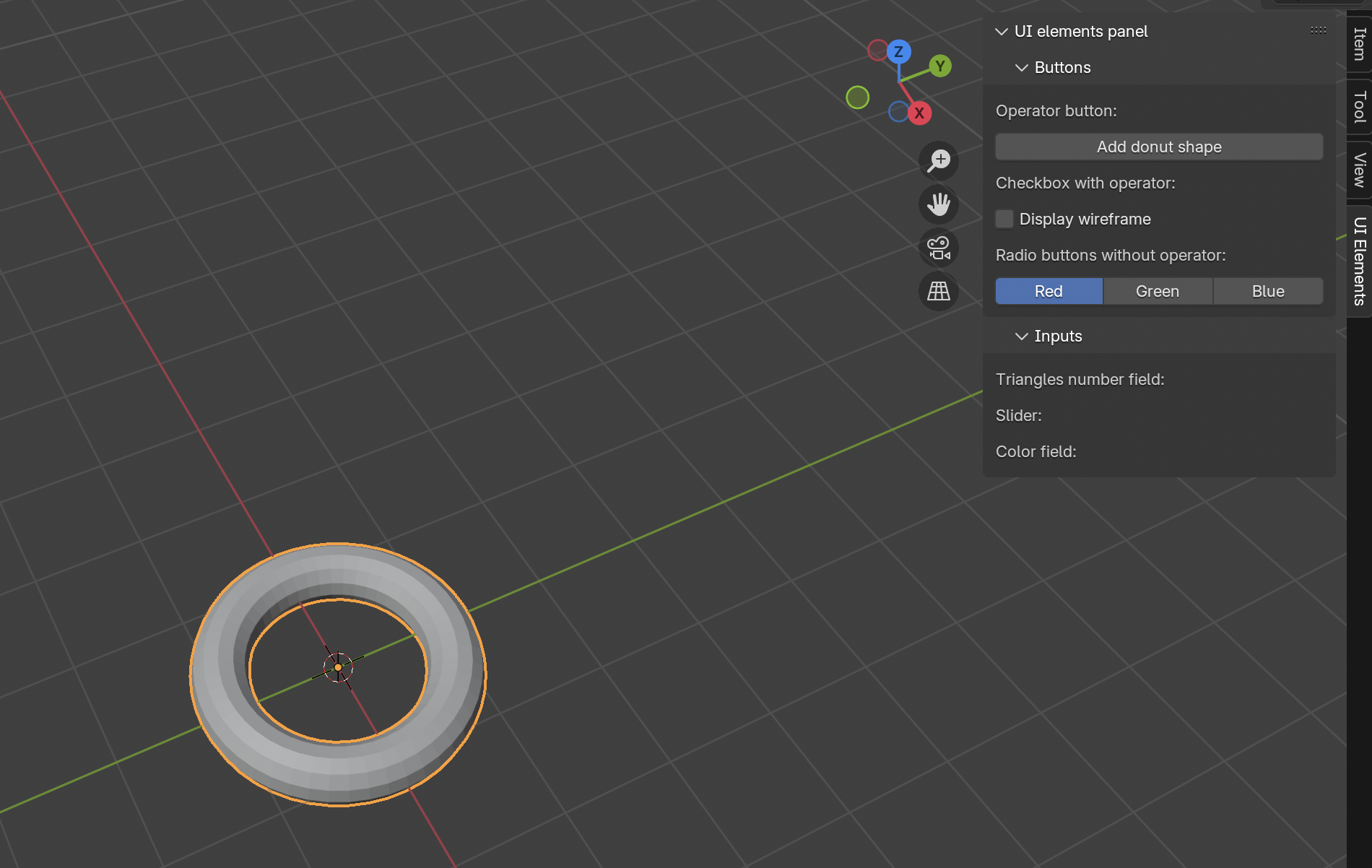
My goal: by the end of the day, I want to create such a panel with buttons, sliders… to manipulate the view.
The process
I have no step-by-step plan, but I know what I want to achieve at the end of the day, so I will research first.
And I now want to start keeping the blog one step at a time so I don’t have to do everything at once.
Let’s start!
Research
After looking up some articles & videos, I am going to check them out and possibly try to join in. While doing that, I will take some notes of things I have learnt.
I found some aritcles that explains the basics of creating your own custom panels & making them as add-ons so you can use them in any blender project.
There are several steps in creating a custom basic panel, but I am happy to refer here to the well-documented sources I used for this.
Learning 01: there are several python templates in blender.
Scripting > Templates > Python > …
Basic panel
A panel consists of operators, you can compare it to functions, they do something, they perform an action. Important to know is that they work on the active object & a correct context is needed.
Step by step: create a basic panel
Create panel class
Panel location
Labels
Layout
Register & unregister panel
Add-on
0. Create panel class
class CATEGORY_PT_name_of_your_panel(bpy.types.Panel): # naming convention for panels
1. Panel location
Where will the panel be placed in the UI of Blender? Use bl_space_type & bl_region_type.
bl_space_type
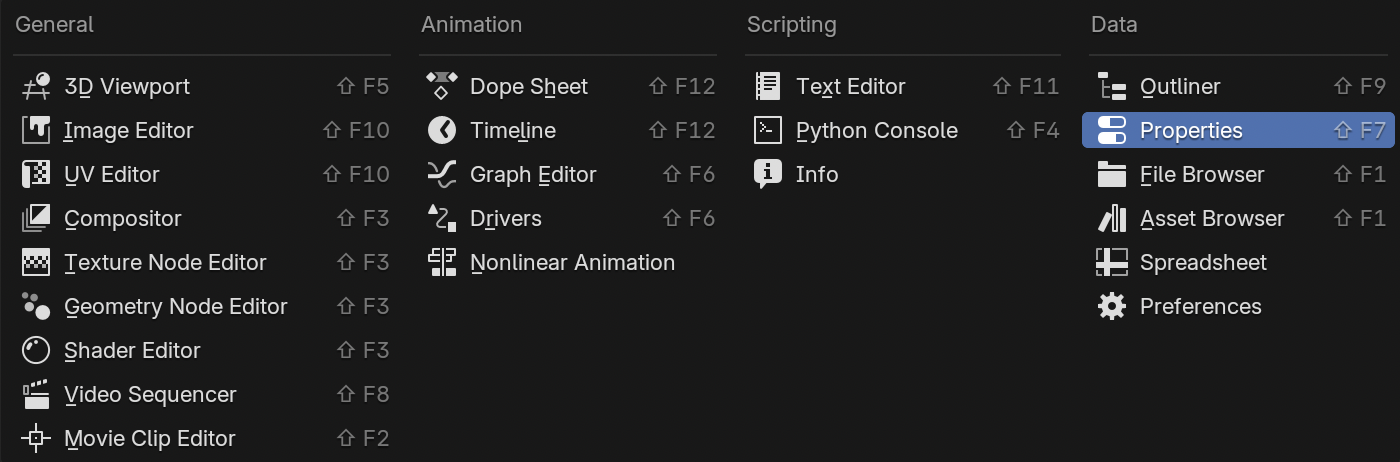
This is the “big location” where our panel will be located. There are different types. You can see this by clicking on a space icon.
Spaces in Blender
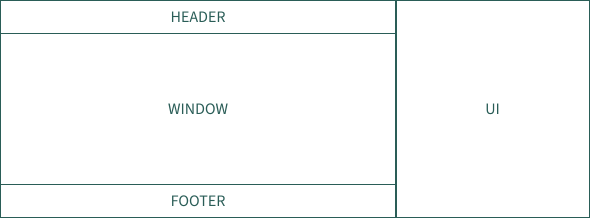
bl_region_type
Regions in Blender
2. Labels
Give your panel a name -> use bl_label.
3. Layout
-> Inside draw() function: create rows (or columns) with operators.
    def draw(self, context):
        layout = self.layout

        row = layout.row()
        row.operator("mesh.primitive_cube_add", text="Add cube") # creates a cube when clicking on the Add cube btn
5.2. Save add-on
Inside text editor: Text > Save As
(!) .py extension, so Blender recognizes the add-on.
5.3. Add add-on in Blender
Restart Blender
Edit > Preferences > Add-ons > Install from disk
Enable your add-on (check checkbox)
You see your add-on in your project
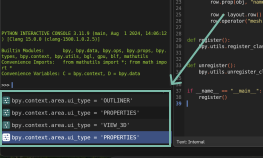
Learning 02: To know the correct name - click on an item and see it appear at the bottom left.
Explore further
Let’s create a panel with different UI elements with built-in operators (like when clicking on button, you add a cube).
But first, what are the different options we have? Can we use a text input, checkbox, slider…?
I don’t quite get my way around the documentation yet and also find it difficult to quickly find, for example, how to link a built-in operator to a checkbox.
Next steps
My steps were:
Find tutorials on the topic
Try to understand tutorials and write things down
Explore different UI elements
The next steps are:
Understanding operators better - how are they created, can I create a custom operator?
Try other UI elements, that I haven’t implemented yet, like a color field, text input field…
The steps above I want to focus on learning and just changing a basic shape (like cube) (i.e. as I am doing).
Try to modify a rhombohedron fractal in a custom panel with the things I have already learned.
Reflection
I found it easier to work with a specific goal in mind. Although my daily goal could be formulated smaller, my next steps are already clear. I hope to be able to modify my rhombohedron fractal a bit by Sunday evening.