Custom operator
Today I continued with custom panels and tried to create a custom operator. Therefore I must understand operators and Blender Python API better. It remains difficult to find resources to help you further, and I find the documentation of the Blender Python API not easy as a beginner to navigate through. Despite, I became a bit wiser in custom panels.
What is it?
A custom operator is a button in Blender Python API.
It can be useful if you want to do several things at the same time. Like, for example, linking a modifier to a mesh, so that when the button is clicked, not only a mesh such as a cube is created but that also has, for example, a subdivision surface modifier.
In the operator itself, you can also create several custom properties (see below) that you can then start modifying. It is best to pass these variables along in a function that you then define outside the operator class so that everything remains clear. In that way you also create a compact operator.
Custom properties within a custom operator
Note: a custom operator where you can customise custom properties yourself, the custom operators appear in a separate screen. So they do not appear in the custom panel. This means you have to click on the operator first and only then can you start modifying the properties. This is indicated in the drawing below. First click the operator button, then a screen appears with several properties to modify. By the way, this is the example from the tutorial I followed (https://www.youtube.com/watch?v=0_QskeU8CPo).
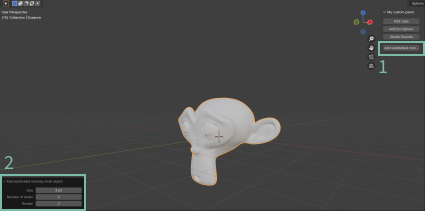
In short: You have to click the operator button first and then you can modify a custom property inside the operator.
How to create?
Creating a custom operator is very similar to creating a custom panel.
# custom operator
class CATEGORY_OT_name_operator(bpy.types.Operator):
  """ Tooltip """
  bl_idname = "category.name_operator" # this will appear after bpy.ops
  bl_label = "description of operator"

  # define custom properties

  def execute(self, context):
    # use functions with your custom properties
    return {'FINISHED'}

def register(): # to say it exists

def unregister():

if __name__ == "__main__":
  register()
You might wonder why I use those last two lines, these are to indicate that when the script runs, it should only play register(). You can run the script then in the text editor for testing.
Don’t forget to add the operator inside the panel, so we can make use of it.
class MESH_PT_cube_controller(bpy.types.Panel):
  # ...
  def draw(self, context):
    layout = self.layout
    row = layout.row()
    row.operator("category.name_operator") # bl_idname of the operator
You can ‘move’ the window (the window you get when you click a custom operator button), that way you can create popup dialog.
#inside class Operator
  def invoke(self, context, event):
    #change to popup dialog
    return context.window_manager.invoke_props_dialog(self)
I didn’t understand why bl_ was sometimes used and sometimes not. After investigating this, I came to the conclusion that the bl_ prefix is used to have a distinction between blender’s properties (bl_) and your own custom properties.
Custom properties
Add a custom property before the execute function in a custom operator. You define the type (integer, float…) inside bpy.props.[type]Property, like you see below.
# example (code from tutorial (https://www.youtube.com/watch?v=0_QskeU8CPo))
mesh_size : bpy.props.FloatProperty(
  name = "Size", # UI name for user
  default = 2.0, # default value
  description = "Size of monkey",
  min = 1.0, # set boundaries for min & max value
  max = 10.0
)
Then you can use that property, like add it inside a function that you define outside the operator class.
Python Console
The Python console is used to test your code or look things up. Tab to autocomplete.
Challenge: cube controller
With some help from ChatGPT, I came up with a challenge to understand better & learn about custom operators & properties & panels.
Goal
- Create a custom panel in the N-Panel
- Combine the following UI elements in a single panel:
- color picker to change cube’s material
- sliders for rotation (x,y,z)
- dropdown menu for material presets (glossy, metallic…)
- Custom operator:
- random color
- reset cube rotation
A bit of my process
I’ll share some steps, not all, because I’m still figuring things out.
Create basic panel
import bpy

class MESH_PT_cube_controller(bpy.types.Panel):
    """Creates a panel in the N-Panel"""
    bl_idname = "MESH_PT_cube_Controller"
    bl_label = "Cube controller panel" # panel name
    bl_category = "Cube controller" # tab name
    bl_space_type = 'VIEW_3D'
    bl_region_type = 'UI'

    def draw(self, context):
        # ...

def register():
    bpy.utils.register_class(MESH_PT_cube_controller)

def unregister():
    bpy.utils.unregister_class(MESH_PT_cube_controller)

if __name__ == "__main__":
    register()
Add cube in the 3d viewport
Got error:
Python: Traceback (most recent call last):
  File "/cube_controller", line 12, in draw
TypeError: 'UILayout' object is not callable
-> solved by deleting unnecessary brackets:
# before
def draw(self, context):
        layout = self.layout()
# after
def draw(self, context):
        layout = self.layout
Rotation sliders
  def draw(self, context):
    layout = self.layout
    row = layout.row()
    row.prop(obj, "rotation_euler")
Reflection
It was harder than I thought. When I had followed a few tutorials in the morning and participated, I thought it was fairly simple. But when I started working on my own and wanted to find something more specific, I had to figure out a lot more and didn’t always find everything. The hardest thing I found was the color picker.
If you click on an item in blender, you can follow what’s behind it, just like the Python Tooltip I enabled, but to apply it in code, it’s then just a bit different and it’s complicated what you have to do.
Especially now that I am in the beginner phase where you still have to figure out a lot and understand what exactly is going on and how to get something done.
The goal I set (see above) was not completed, but I just wanted to experiment and that gave me some direction.
Sources
A list of tutorials:
- https://www.youtube.com/watch?v=jZt3MO5D1R8
- https://www.youtube.com/watch?v=0_QskeU8CPo
- https://studio.blender.org/training/scripting-for-artists/chapter/top-scripting-for-artists/
- https://www.youtube.com/watch?v=eo7UjKFiagk&list=PLFtLHTf5bnym_wk4DcYIMq1DkjqB7kDb-&index=15 -> material shader with custom operator
- https://www.youtube.com/playlist?list=PLFtLHTf5bnym_wk4DcYIMq1DkjqB7kDb- -> playlist for beginners with blender python api
- And of course the documentation of Blender Python API: https://docs.blender.org/api/current/info_quickstart.html
- https://www.youtube.com/watch?v=lq8WpPLxw1E
- https://blender.stackexchange.com/questions/57306/how-to-create-a-custom-ui#57332