Intro
Today I started by looking back at the list I had made earlier of different ideas of what can be made interactive.
| value | difficulty to implement |
|---|---|
| color | 🟢 easy |
| number of iterations | 🟢 easy |
| direction to turn around | 🟠 moderate |
| see it in 2d or 3d | 🔴 hard |
| size | 🟢 easy |
| choose acute angle | 🟢 easy |
| toggle inverse visibility* | 🟠 moderate |
| cutting the fractal into different slices | 🔴 hard |
*What is normally omitted is now visible and others not visible OR what is omitted is gone.
I started with the things that seemed easiest to me to start adding those on my cube, so I can reuse this code when applying to the 3d fractal. I will describe the different steps in detail, as it is already starting to become clearer to me how blender’s python api works.
Color picker
I told in my previous blog post, that I found this difficult, but I want to be able to change the color, so I tried again.
I want to have a color section inside my custom panel, where I can change the different values for the red, green & blue color channels.
| RGB Color | ||
|---|---|---|
| Red | Green | Blue |
| red value | green value | blue value |
Create sliders
First, we are going to create 3 sliders, one for each value. We can do this by using custom properties. We use a minimum and maximum value to indicate boundaries.
For now we don’t want them within an operator because we want to make changes immediately and not click a button before changing our color channels. For that our custom properties must be defined global, outside the operator.
Scene properties are ideal for this. We use FloatProperty, because we use floats. If we change a color value, then the color of our object should also change. For this, we use the update method in which we assign a function that contains the logic, so the material of the active object changes.
# inside register function
bpy.types.Scene.red_value = bpy.props.FloatProperty(
  name = "Red value",
  min = 0.0,
  max = 1.0,
  default = 0.0,
  update = update_rgb_colors
)
bpy.types.Scene.green_value = bpy.props.FloatProperty(
  name = "Green value",
  min = 0.0,
  max = 1.0,
  default = 0.0,
  update = update_rgb_colors
)
bpy.types.Scene.blue_value = bpy.props.FloatProperty(
  name = "Blue value",
  min = 0.0,
  max = 1.0,
  default = 0.0,
  update = update_rgb_colors
)
If we start addressing all our custom properties in this way, the register function becomes very complicated. We can solve that by creating a property group that contains all custom properties.
# PropertyGroup
class AllProperties(bpy.types.PropertyGroup):
  # add custom properties
  red_value : bpy.props.FloatProperty(
    name = "Red value",
    min = 0.0,
    max = 1.0,
    default = 0.0,
    update = update_rgb_colors
  )
  green_value : bpy.props.FloatProperty(
    name = "Green value",
    min = 0.0,
    max = 1.0,
    default = 0.0,
    update = update_rgb_colors
  )
  blue_value : bpy.props.FloatProperty(
    name = "Blue value",
    min = 0.0,
    max = 1.0,
    default = 0.0,
    update = update_rgb_colors
  )
Creating a property group: (https://www.youtube.com/watch?v=jZt3MO5D1R8).
Don’t forget to register the property group, so Blender knows it exists.
classes = (
  AllProperties,
  MESH_PT_cube_controller
)
def register():
  for cls in classes:
    bpy.utils.register_class(cls)

    bpy.types.Scene.all_properties = bpy.props.PointerProperty(type = AllProperties)
    # all_properties is here our reference that we will use
    # type = ... -> class name of PropertyGroup
And also unregister by deleting it (del).
def unregister():
  del bpy.types.Scene.all_properties

  for cls in classes:
    bpy.utils.unregister_class(cls)
Add to panel
Let’s add these 3 properties in my panel. We make use of layout(), row(), column(), split() and box() to create the desired structure.
class MESH_PT_cube_controller(bpy.types.Panel):
  # ...

  def draw(self, context):
    layout = self.layout
    scene = context.scene

    box = layout.box()
    box.label(text = "RGB Color")

    split = box.split()

    col = split.column()
    col.label(text = "Red")
    col.prop(scene.all_properties, "red_value")

    col = split.column()
    col.label(text = "Green")
    col.prop(scene.all_properties, "green_value")

    col = split.column()
    col.label(text = "Blue")
    col.prop(scene.all_properties, "blue_value")
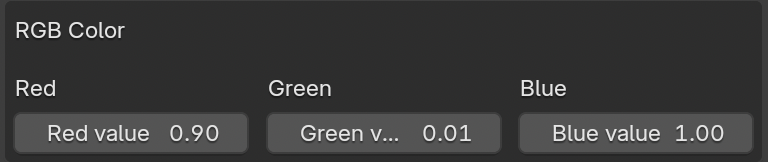
Update values
When the value changes, Blender must be aware of this so that the material of the cube changes.
We do this in our update function that we included in the update method, so the update_rgb_colors.
def update_rgb_colors(self, context):
The parameters of our function are self & context.
- Self refers to current instance of a class. So here it refers to the PropertyGroup. (After bpy.types)
- Context refers to the current state, like (current) active object, current scene…
Part 1: add material
In Blender, you assing a material to an active object. The active object is bpy.context.object, but it is better to use context.object, so we don’t refer to the global context, but the context of our function.
def update_rgb_colors(self, context):
    obj = context.object # active object

    # create one material for each object
    if not obj.active_material:
        rgb_color = bpy.data.materials.new(name = "RGBColor")
        rgb_color.use_nodes = True
        obj.active_material = rgb_color
    else:
        # use existing material
        rgb_color = obj.active_material
The following is very complicated, I found anyway. After a lot of looking up, I understand from whence certain names come. Let me explain the steps.
Part 2: shader nodes
In the properties panel, you have material, where you can change the base color. If you click on the yellow circle, you get an overview of what is possible.
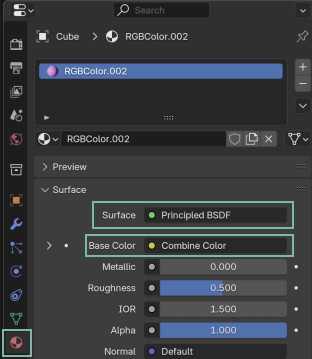
I saw this, but I found this unclear. Fortunately, in Blender we can view properties in different ways. Click on Shading.
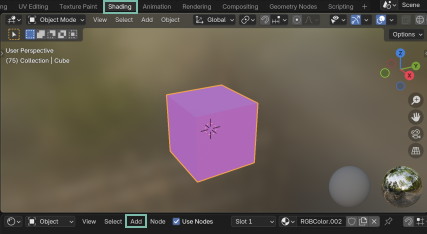
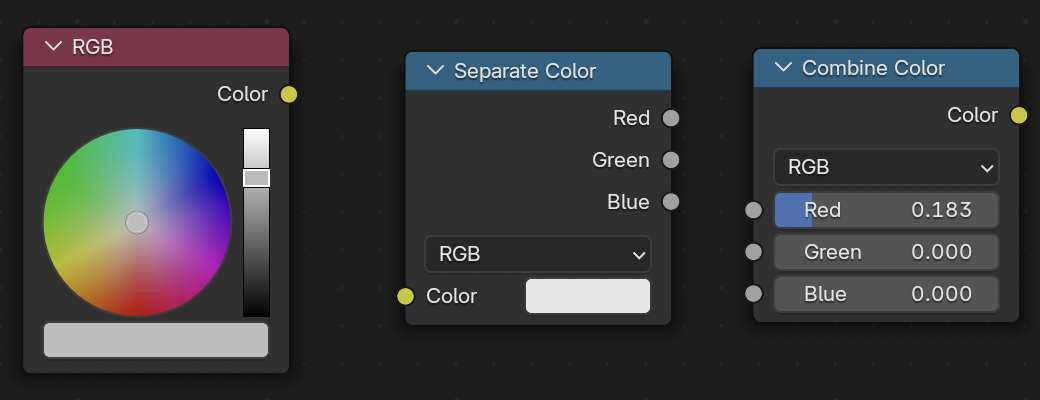
bpy.ops.node.add_node(use_transform=True, type="ShaderNodeCombineColor")
Change the first input (Red). Look in INFO to see if you can see combine color anywhere now.
Whichever way you chose (properties or shading), you should see something like this in the INFO:
bpy.data.materials["NewRGBColor.098"].node_tree.nodes["Combine Color"].inputs[0].default_value = 0.2
The same goes for our Principled BSDF (Change first input - base color). Inside INFO you should see something like this:
bpy.data.materials["NewRGBColor.098"].node_tree.nodes["Principled BSDF"].inputs[0].default_value = (0.800071, 0.155171, 0.49747, 1)
Now that we have our information, let’s apply it in our code. Let’s take a look at this:
bpy.data.materials["NewRGBColor.098"].node_tree.nodes["Combine Color"].inputs[0].default_value = 0.2
We can divide it into several pieces:
bpy.data.materials["NewRGBColor.098"] # part 1
.node_tree.nodes["Combine Color"] # part 2
.inputs[0].default_value = 0.2 # part 3
Part 1 is already done (see above). We can write part 2 like this:
rgb_node = rgb_color.node_tree.nodes.get('Combine Color')
  if not rgb_node:
    rgb_node = rgb_color.node_tree.nodes.new(type = 'ShaderNodeCombineColor')
We get our rgb_node, if this node does not exist, we create one using the new() method. The type is not chosen, it is based on the type we get when adding a new node in shading (see above).
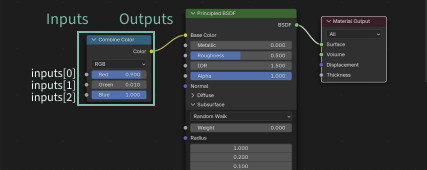
We do the same for our Principled BSDF, so we can link them together. (We have two separate nodes that we connect with a ‘rope’ called link. If you were to do this manually, you will see in INFO again that weird naming convention that helps us create the link with code.)
bsdf_node = rgb_color.node_tree.nodes.get('Principled BSDF')
  if not bsdf_node:
    bsdf_node = rgb_color.node_tree.nodes.new(type ='ShaderNodeBsdfPrincipled')

rgb_node = rgb_color.node_tree.nodes.get('Combine Color')
  if not rgb_node:
    rgb_node = rgb_color.node_tree.nodes.new(type = 'ShaderNodeCombineColor')

rgb_color.node_tree.links.new(rgb_node.outputs[0], bsdf_node.inputs[0]) # the order doesn't matter, you can put bsdf_node.inputs[0] also first.
Note that for bsdf_node we use inputs and for rgb_node we use outputs. The index is based on the item that comes first in the queue (from top to bottom).
Part 3: connect inputs
Now we can assign the default value for each input. We make use of context.scene.all_properties, because all_properties is a reference of our property group and we refer to the current scene.
If we put everything together, we got something like this:
def update_rgb_colors(self, context):
    obj = context.object

    if not obj.active_material:
        rgb_color = bpy.data.materials.new(name = "RGBColor")
        rgb_color.use_nodes = True
        obj.active_material = rgb_color
    else:
        rgb_color = obj.active_material

    bsdf_node = rgb_color.node_tree.nodes.get('Principled BSDF')
    if not bsdf_node:
        bsdf_node = rgb_color.node_tree.nodes.new(type ='ShaderNodeBsdfPrincipled')

    rgb_node = rgb_color.node_tree.nodes.get('Combine Color')
    if not rgb_node:
        rgb_node = rgb_color.node_tree.nodes.new(type = 'ShaderNodeCombineColor')

    rgb_color.node_tree.links.new(rgb_node.outputs[0],bsdf_node.inputs[0])

    rgb_node.inputs[0].default_value = context.scene.all_properties.red_value
    rgb_node.inputs[1].default_value = context.scene.all_properties.green_value
    rgb_node.inputs[2].default_value = context.scene.all_properties.blue_value
I used https://www.youtube.com/watch?v=eo7UjKFiagk&list=PLFtLHTf5bnym_wk4DcYIMq1DkjqB7kDb-&index=15, https://www.youtube.com/watch?v=jZt3MO5D1R8, https://b3d.interplanety.org/en/user-interface-elements-alignment-by-columns/, https://blenderartists.org/t/python-ui-neste-boxes/1462483/3 as learning sources to understand it better. But because it was difficult for me to understand what is going on and how to know to type that specific name, I wrote this step-by-step guide.
Cube size
To change the cube size, we can use the size property of the mesh.primitive_cube_add operator.
# inside panel class
def draw(self, context):
  layout = self.layout

  row = layout.row()
  op = row.operator("mesh.primitive_cube_add")
  op.size = 5.0
Based on https://blender.stackexchange.com/questions/2515/how-to-pass-multiple-operator-properties-via-ui-layout.
But the size property is a level deeper, so we have to click the operator button first and only then can we change the value. We want to be able to change this immediately, so again we use a global property.
# inside all_properties PropertyGroup
my_cube_size: bpy.props.IntProperty(
  name = "Cube Size",
  description = "Size of the cube",
  default = 1,
  min = 1,
  max = 10,
  update = update_cube_size
)
# outside PropertyGroup - update function
def update_cube_size(self, context):
    obj = context.object
    obj.dimensions = (self.my_cube_size, self.my_cube_size, self.my_cube_size)
# Don't forget to add inside our panel
layout.prop(scene.all_properties, "my_cube_size")
Rotation
Let’s also add rotation. We use the same structure like RGB Color, so we copy that code and change the parameters.
obj = context.object # active object
# rotation
box = layout.box()
box.label(text = "Rotation")

split = box.split()

col = split.column()
col.label(text = "X")
col.prop(obj, "rotation_euler", index = 0)

col = split.column()
col.label(text = "Y")
col.prop(obj, "rotation_euler", index = 1)

col = split.column()
col.label(text = "Z")
col.prop(obj, "rotation_euler", index = 2)
To know that we have to use rotation_euler: see N-Panel > tab Item > Rotation.
If you change a value, you see in INFO:
bpy.context.object.rotation_euler[0] = 2.37365
We want to change the property rotation -> use prop() method.
layout.prop(obj, "rotation_euler") # all axes
By assigning an index, we access each axis individually.