Today I started making the rhombohedron fractal interactive.
Done today
made my braindump shorter - made categories
updated my roadmap planning
end presentation slides (structure)
started by making rhombohedron fractal interactive
Interactive rhombohedron fractal
1 Rhombohedron
On Monday, I was able to get my menger sponge to change levels. I now want to apply the same logic for my rhombohedron fractal. But first I want the different mini-rhombohedrons to form 1 object. A classmate gave me a tip that you can use control + J to join all objects. Indeed, if I select everything, and do control + J, I have 1 object. Now let’s implement this in the code.
# before joiningbpy.context.view_layer.objects.active = bpy.data.objects['rhombohedron_object'] # name of your object
Max_level changer
With the knowledge gained, we can now very easily create a custom panel containing a custom property max_level.
The steps are as follows:
Create a register & unregister function.
We use the register() so that blender is aware of the classes we are going to create (for custom panel among others). Unregister() is used to unload the Python class from Blender, so it will remove the elements when the add-on is closed or deactivated. These are 2 functions that are included by default when creating custom panels to export as an add-on.
Create an idiom to make the code run as a script and not as a module.
if __name__ == "__main__":
    register()
Create a panel class and register it (create a classes item where you write down all classes, so easier to loop at register & unregister function). Class is reserved hence cls in the for loop.
Create a custom property max_level. We place this in a property group as we will modify several properties later. Also register this propertygroup class.
Create an update function that is called when the custom property changes.
def update_fractal(self, context):
    # delete previous fractal from viewport -> start from empty canvas
    for obj in bpy.data.objects:
     if obj.name.startswith("rhombohedron_object"):
        bpy.data.objects.remove(obj, do_unlink = True)

    # create new fractal with custom level
    generate_rhombohedron(0,0,0, size, self.max_level)

    # create joined object so it's easier to delete the fractal
    bpy.ops.object.select_all(action='SELECT')
    bpy.context.view_layer.objects.active = bpy.data.objects['rhombohedron_object']
    bpy.ops.object.join()
We can now plug in our midi controller and see what this does.
Color changer
Code copied from a previous blog post
Changed all_properties to fractal_properties
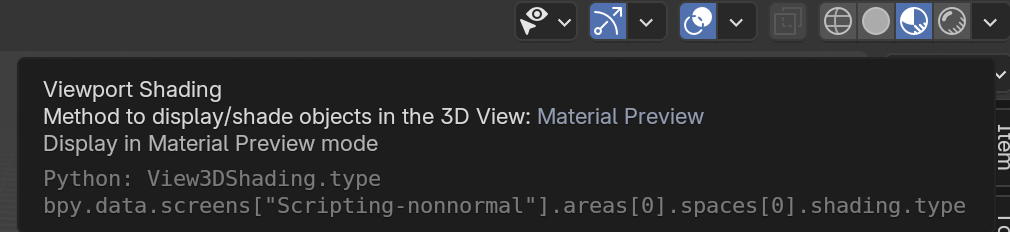
I didn’t name it in a previous blog post, but you need to make sure the display mode is set to Material Preview or rendered to see the color changes.
Rotation
Code copied from a previous blog post
Changed all_properties to fractal_properties
Note: the fractal rotates around the so-called zero point (which is the point you give at the beginning, this can be (0,0,0), but just as easily another one.).
If we would want the fractal to rotate around its own axis, the centre must be at the centre of the figure. But don’t know how to do this mathematically then. Either we need to work with rotation matrices. I’ll leave it as it is for now, without rotation around its own axis.
Size
We can resize the fractal, but I would like if you change the level, that the size stays the same without having to recalculate the fractal at a different size.
Acute angle
If the acute angle changes, then we remember this angle. only if there is a changing value at max_level (or the same and you enter), then that angle should also change.
We could also do that as the angle changes, the fractal is also redrawn, but I haven’t done that (yet).
It works by setting a global variable and changing this angle in the update function of the custom property acute_angle.
I had to put the origin_vertices in a function and call it to have the latest sharp angle, because the origin_vertices use the angle. So if that changes, so do those coordinates.
Since radians does not read easily for people, I made degrees out of it and then convert it into math.radians when I want to know the angle theta.
I wondered what would happen at an obtuse angle and changed the values. Even though the origin_vertices are written for the sharp corner, I was curious what would happen. Here are the results:
Next steps
Tomorrow I want to try making the reverse of the fractals: what is normally removed is now shown. And then with a checkbox that you can switch between the two different ones.
I also want to put in other interactivity, and try again interactivity that didn’t work today
write better code
summarise what I did all during this project (will appear later as a blog post) -> was told at coach moment, this will be the basis of my final presentation.