Code optimization
Some observations
Max_level & rendering
From level 3 onwards, rendering takes a long time. By adding interactions, level 3 is not fast enough, because if you set the max_level to 3, for example, and then change other properties, it blocks (blender keeps rendering). You have to be patient for that before it fully loads.
MIDI pads
I could easily link my midi device’s control sliders to my custom properties using the MidiController add-on, but the pads don’t work. I did research on this. I have come to the conclusion that working with pads doesn’t work. These work slightly different from sliders. Pads do not give a value 0 or 1 like a button, but give a value based on the speed they are pressed (velocity).
When I reached back to the documentation of the add-on, more specifically the videos, I saw in the comments that the person who created the add-on was not yet able to integrate pads. Looking at the long code files, this seems like a very hard job to do, since
- I didn’t write the code myself, it’s harder to understand what someone else did
- I have very little knowledge how to read messages from a midi device…
It’s a shame I hadn’t read this before, otherwise I wouldn’t have gone for this and might have been able to work somewhere, but in the meantime I have written the code. We are also in the last week, but I need to have a working result at the end of the run.
Okay just to recap. What do I have and what not?
✅ a rhombohedron fractal script in Blender’s Python API where I use custom panels to change values and the code also works by adding midi sliders through the add-on.
❌ midi pads can’t work in Blender’s Python API using the add-on
❌ audio → but I was already going to leave that out.
I’d like a stable end result at the end. So I’m now going to first write the code I have neatly (remove other comments, make sure I don’t have any more errors in my terminal, make sure everything works properly…).
Best-case scenario that I could still achieve at this point, would be to get both the pads and sliders working, with visible changes in real-time within a standalone Python project. The fractal script is already written, but the interactions still need to be implemented. However, I will focus on making a working end result with no bugs and issues, as was also said at the coach moment.
I could simply ensure that the end result is good and put together further the final presentation and a summary of my project. That’s a safe option, I can also try to get the most out of the project by doing some more research. That way I can still try to correct my mistake of going in the wrong direction (namely interaction in Blender’s Python API). I could document these findings then, maybe in a separate blog post.
Solve errors
The basic code works. but there are some errors in my terminal that I need to fix first (even with errors, the code works, but we prefer not to see errors 🙂).
Errors:
Traceback (most recent call last):
  File "...", line 224, in draw
TypeError: UILayout.prop(): error with argument 1, "data" -  Function.data does not support a 'None' assignment AnyType type
When & why does this error occur?
→ The error happens when no object is drawn. The error means that the first element inside our layout.prop() is None. For the rotations we added object as our first element inside layout.prop() and this gives the problem, because there is no object yet.
Solution
→ We could draw something immediately or place an if-else loop where if nothing has been drawn on the canvas yet, this custom property is not visible.
class OBJECT_PT_fractal_panel(bpy.types.Panel):
    # ...
    def draw(self, context):
        object = context.object

        if object:
            split = box.split()

            col = split.column()
            col.label(text = "X")
            col.prop(object, "rotation_euler", index = 0)

            col = split.column()
            col.label(text = "Y")
            col.prop(object, "rotation_euler", index = 1)

            col = split.column()
            col.label(text = "Z")
            col.prop(object, "rotation_euler", index = 2)
        else:
            box.alert = True
            box.label(text = "Add rhombohedron first!")
To make the label text (Add rhombohedron first! stand out), I want to change the color. For that we can use alert method, found on https://blender.stackexchange.com/questions/8851/in-python-is-it-possible-to-change-the-background-color-of-a-property-ui
Warning: no mesh data to join
When & why does this error occur?
→ We see the error when max_level = 0, so if only one object is created. This is also normal because you can only create a joined object if there are 2 objects.
Solution
→ With len() we can ask the length of the array in Python.
# inside update_fractal() function
if len(bpy.data.objects) > 1 :
    bpy.ops.object.select_all(action='SELECT')
    bpy.context.view_layer.objects.active = bpy.data.objects['rhombohedron_object']
    bpy.ops.object.join()
Ai, we have another issue, my fractal is not selected if max_level = 0. Looking at the code above, this is also normal because we only select all our objects if the length of all objects is greater than 1. With a small change in our code, everything is fine!
    bpy.ops.object.select_all(action='SELECT')
    bpy.context.view_layer.objects.active = bpy.data.objects['rhombohedron_object']

    if len(bpy.data.objects) > 1 :
        bpy.ops.object.join()
PropertyGroups
It might be confusing for someone if a certain custom property is not specifically related to the fractal, and yet have it belong to FractalProperties. That’s why I created a separate property group. All properties can go together in one group, but color is not a specific property of the fractal: it might as well be a cube or Suzanne (monkey mesh in blender) and get a color with the code. The number of levels, acute angle, inverse fractal… are specific properties of the fractal, which is why only they are allowed in the FractalProperties.
Again, I register the PropertyGroup & unregister. And I modify my code, as I had accidentally placed the fractal properties in my for loop…
# before
def register():
    for cls in classes:
        bpy.utils.register_class(cls)

        bpy.types.Scene.fractal_properties = bpy.props.PointerProperty(type = FractalProperties)

# after
def register():
    for cls in classes:
        bpy.utils.register_class(cls)

    bpy.types.Scene.fractal_properties = bpy.props.PointerProperty(type = FractalProperties)
    bpy.types.Scene.mesh_properties = bpy.props.PointerProperty(type = MeshProperties)
Size changer
When I adjust the size, I still encounter a problem (see below).
Goal: resize the object while keeping its original proportions. I want when I adjust the size of the fractal and when I create a new fractal (so when update_fractal is triggered by changing the number of levels, for example), the size of the fractal is the same and does not shrink or enlarge.
But this is the issue:
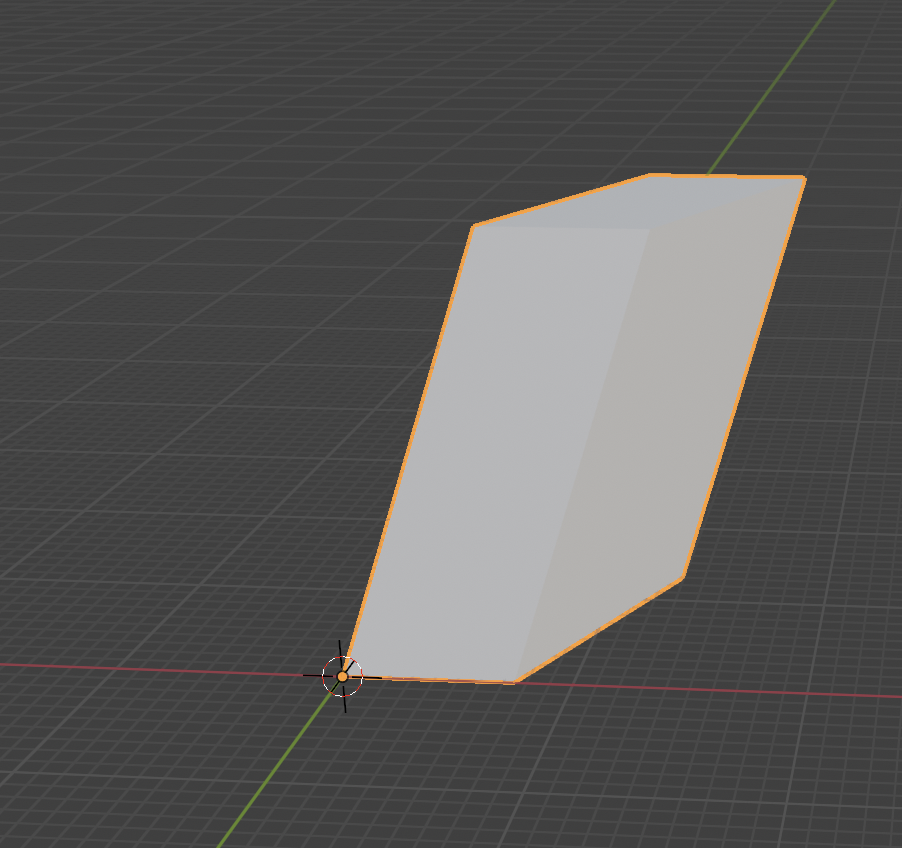
def update_size(self, context):
    obj = context.object
    obj.scale = (self.size, self.size, self.size)
    # obj.dimensions = (self.size, self.size, self.size)

def update_fractal(self, context):
   # ...

    # get size & create new fractal
    size = bpy.context.scene.fractal_properties.size
    generate_rhombohedron(0, 0, 0, size, self.max_level)
Issue with scale & dimensions in Blender:
(update_fractal() function is triggered when max_level or inverse_fractal property changed.)
| transformation | proportions of fractal | update_fractal() is triggered |
|---|---|---|
obj.scale | proportions are preserved 👍 | size of fractal changes 👎 |
obj.dimensions | proportions change, which is normal because we set it to (self.size, self.size, self.size), but dimensions aren’t equal with a non-uniform shape like the fractal 👎 | size is retained 👍 |
The problem is that Blender automatically adjusts obj.scale when you set obj.dimensions and vice versa. See video:
I know the dimensions can’t be the same for x, y, z like I wrote above.
It is still not working… searched a lot online, but found nothing, so I asked in a forum. I’m not going to keep looking for it, if I don’t succeed, I take it out and use a fixed value.
For rotation I have the same problem: new rotation position isn’t saved when adding new properties…
Retain color
I can already adjust color (see blog post about this). But if a new shape is drawn, this color is no longer retained.
→ Solved by adding update_rgb_colors(context.object, context) at the end of the update_fractal() function - after there has been a join() (or no join at max_level = 0). It takes the current context & context.object of our new fractal object we have now.
def update_fractal(self, context):
    # ...
    generate_rhombohedron(0, 0, 0, size, self.max_level)

    bpy.ops.object.select_all(action='SELECT')
    bpy.context.view_layer.objects.active = bpy.data.objects['rhombohedron_object']

    if (len(bpy.data.objects) > 1):
        bpy.ops.object.join()

    update_rgb_colors(context.object, context)
Read MIDI messages
Code optimization is still needed, but I was curious about rtmidi (a library that the person who created the MidiController add-on had used. I had seen others use this too). I decided to read up on this further. I went back to a standalone project here (away from blender’s python api).
What follows below is long, but is simply the various steps that come from sources (see below).
python-rtmidi is a wrapper to communicate with midi controllers.
These are the steps you need to take:
-
Install & import python-rtmidi inside terminal:
pip3 install python-rtmidiin your project:
import rtmidi -
Connect to MIDI device
# initialize midi in handler midi_in = rtmidi.MidiIn() # get all connected ports print(midi_in.get_ports()) # delete this afterwards # open midi on specific port midi_in.open_port(0) # better: use dictionary to recognise name of MIDI device, so it always connect to that device ports_dictionary = {k: v for (v, k) in enumerate(midi_in.get_ports())} midi_in.open_port(ports_dictionary["LPD8 mk2"]) # check if port is open print(midi_in.is_port_open()) # True -
Read message
import time
# if port is open, we get message & read it
while True:
	message_and_dt = midi_in.get_message()
	if message_and_dt:
        (message, dt) = message_and_dt # unpack

        # convert the command integer to a hex so it's easier to read
        command = hex(message[0])
        # see all our messages
        print(f"{command} {message[1:]}\t| dt = {dt:.2f}")
    else:
     # add a short sleep so the while loop doesn't hammer your cpu
        time.sleep(0.001)
When clicking on play button we should see our messages appear when we rotate our controllers or push a button.
Code above is from Mo chreach!
- https://www.youtube.com/watch?v=JYslZkc90GI
- https://www.youtube.com/watch?v=zpZDwqsgSpc → explanation how to read MIDI messages
When setting up, I got an circular input error.
That’s because I used the same name as the module I’m importing into Python. Python thinks this file is the module itself. Solution: choose a different file name. (https://stackoverflow.com/questions/59762996/how-to-fix-attributeerror-partially-initialized-module/59777118.)
Then I experimented some more. When I did this for the pads, I didn’t see my command “btn pressed”, even though this command existed and I saw it in my terminal.
 command = hex(message[0])

 if channel == 40:
	 if command == 0x99:
	   print("btn pressed")
It’s because I didn’t place quotes and now python doesn’t recognize it as a string.
It is important that both have the same type. You can check this by using print(type(...)).
Mo chreach! also mentioned the library mido. This is more complex than rtmidi, but you can do more with it, according to him.
The setup is very similar to python-rtmidi. I used the documentation for this: https://mido.readthedocs.io/en/latest/intro.html, where it is a bit mixed up.
# Step 0: install & import mido library
import mido

# Step 1: open specific port
# get your input ports
# print(mido.get_input_names())
input_port = mido.open_input('LPD8 mk2') # create input port to receive messages

# Step 2: receive messages
message = input_port.receive()
#print(message) # one message
# iterate through all messages
for message in input_port:
    print(message)
Our message looks like this:
- for the pads
note_on channel=9 note=41 velocity=4 time=0 note_off channel=9 note=41 velocity=0 time=0 note_on channel=9 note=42 velocity=3 time=0 note_off channel=9 note=42 velocity=0 time=0 - for the controls / sliders
control_change channel=0 control=72 value=55 time=0
control_change channel=0 control=72 value=54 time=0
control_change channel=0 control=72 value=53 time=0
control_change channel=0 control=72 value=52 time=0
control_change channel=0 control=72 value=51 time=0
control_change channel=0 control=72 value=50 time=0
control_change channel=0 control=72 value=49 time=0
Note: I’m going to continue trying to get code clean & correct, and then I move back to midi research (also after end presentation & end summary).