Last changes
Size, angle & rotation changer
Size
I tried several things to make sure when you resize that the size stays the same when fractal is re-rendered, but failed. So I took this code out. I think it has to do with the fact that I also use the size to render my fractal. If I don’t want to redraw the fractal by executing update_fractal when the size adjusts, I have to use scale and dimensions.
# inside update_fractal
size = bpy.context.scene.fractal_properties.size
generate_rhombohedron(0, 0, 0, size, self.max_level)

# propertygroup
size : bpy.props.FloatProperty(
    name = "Size",
    description = "Set size of rhombohedron",
    min = 5.0,
    max = 20.0,
    default = 5.0,
    update = update_size
)
def update_size(self, context):
    obj = context.object
    obj.scale = (self.size, self.size, self.size)

# panel
layout.prop(scene.fractal_properties, "size")
If I adjust the type (FloatProperty instead of IntProperty) → scale in tab ‘Item’ does adjust, because there they also use scale with a float type. But even that change did not make it work.
Angle
The angle must not be zero, otherwise no item will be drawn. ➡ change min = 0 to min = 10
theta = math.pi/3
def update_angle(self, context):
    global theta # necessary to add, because we are changing the global value
    theta = math.radians(self.acute_angle)

    update_fractal(self, context)
Rotation
Same as for size, if I apply a rotation to update_fractal() I want the rotation to be preserved. Plus I want it rotated around its own axis and not around (0,0,0).
Again, this was not an easy one. But succeeded in the end.
I found that rotation is determined in Blender by the orange pivot point. You can move this by “Object > Set Origin” and then choose from 1 of the 2 above. I choose the second so the shape doesn’t have to be moved again. (video: https://www.youtube.com/watch?v=YPUDg5enGLY)
bpy.ops.object.origin_set(type='ORIGIN_GEOMETRY')
Before deleting the fractal inside update_fractal(), we save the rotation so we can use it in the object we just created.
# inside update_fractal function
rotation = delete_previous_fractal()

def delete_previous_fractal():
    rotation = None

    for obj in bpy.data.objects:
        if obj.name.startswith("rhombohedron_object"):
            rotation = obj.rotation_euler.copy() # copy previous rotation before deleting object
            bpy.data.objects.remove(obj, do_unlink = True)

    return rotation
We can use now that rotation to apply it again when our new fractal is created.
    bpy.ops.object.select_all(action='SELECT')
    bpy.context.view_layer.objects.active = bpy.data.objects['rhombohedron_object']

    if (len(bpy.data.objects) > 1):
        bpy.ops.object.join()

    bpy.ops.object.origin_set(type='ORIGIN_GEOMETRY')

    new_obj = bpy.data.objects.get("rhombohedron_object")

    if rotation:
        new_obj.rotation_euler = rotation # apply saved rotation
Refactor code (some examples - not all)
- EDGES = [] → not necessary to write down because it won’t change… → just empty array
# before
mesh_data.from_pydata(vertices, EDGES, FACES)
# after
mesh_data.from_pydata(vertices, [], FACES)
- created variables to calculate the sinus & cosinus of theta:
sin_angle = math.sin(theta), cos_angle = math.cos(theta) - origin_vertices = [ … ] return origin_vertices → immediately return
- I refactored the panel
- rotation I had first written out like the color, but since we want to use them all anyway, we can obtain the same thing, except the layout itself, in 1 line of code.
col.prop(object, "rotation_euler")- placed color layout in separate function
def add_color_layout(layout, scene):
    box = layout.box()
    box.label(text = "RGB Color")
    split = box.split()

    labels = [ "Red", "Green", "Blue"]
    props = ["red_value", "green_value", "blue_value"]

    for i in range(3):
        col = split.column()
        col.label(text = labels[i])
        col.prop(scene.mesh_properties, props[i])
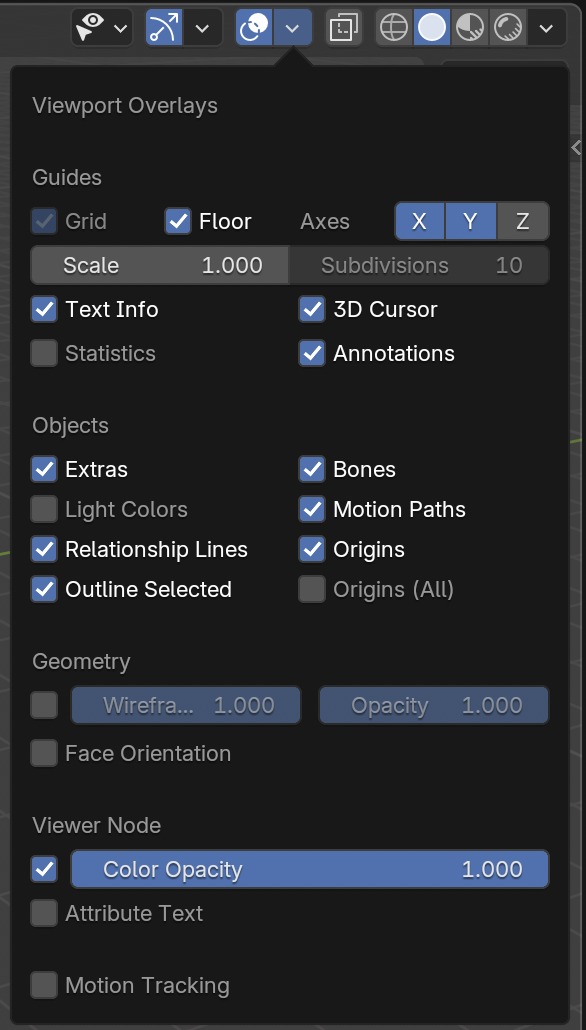
Hide Blender’s interface
- Changed background color (inside World - for shading type: rendered)
- Inside viewport overlays I can hide multiple items: axes, 3d cursor, text info, pivot point… (Found at: https://blenderartists.org/t/hide-pivot-point/1380002)
MIDI
Difference between mido & python-rtmidi
I was also doing a bit of research on how I could link a midi device in a standalone python project so I might be able to use the pads. I went exploring and learned more about how to receive midi messages. Read post 20.
I wanted to know the difference between mido & python-rtmidi.
These were my findings:
- Mido requires less setup than python-rtmidi. Mido is easier in that aspect.
- python-rtmidi is little little bit faster than mido, so for real-time accuracy for the interaction, I will need python-rtmidi
- It takes more time to receive a pad message than a control slider message.
Code to compare the their epoch times (epoch = the point where time begins) with both the same basic code: (python time: https://www.programiz.com/python-programming/time)
# python-rtmidi
import rtmidi
import time
midi_in = rtmidi.MidiIn()
ports_dictionary = {k: v for (v, k) in enumerate(midi_in.get_ports())}
midi_in.open_port(ports_dictionary["LPD8 mk2"])
while True:
    message_and_dt = midi_in.get_message()
    if message_and_dt:
        timestamp = time.time()
        print("Seconds since epoch=", timestamp)
        print(message_and_dt)
    else:
        time.sleep(0.001)

# mido
import mido
import time
input_port = mido.open_input('LPD8 mk2')
message = input_port.receive()
for message in input_port:
    timestamp = time.time()
    print("Seconds since epoch=", timestamp)
    print(message)
Change fractal
Then I wanted to test out python-rtmidi with my fractal. Since I had placed all the interactions I wanted in Blender’s Python API, it seemed silly to do the same work again. I chose to adjust the inverse visibility of the fractal based on the message I received from 1 pad.
My steps were:
-
Make rhombohedron in pygame & pyopengl (because they are better to render 3d graphics than matplotlib). I had already made the cube and blender sponge. So I could refresh pyopengl & pygame again and put in the code of my rhombohedron. I prepared the setup for pygame & pyopengl and drew a rhombohedron using faces and vertices.
It took some fiddling to position my fractal roughly in the centre of the screen.gluPerspective(45, (screen_width/screen_height), 1.0, 10.0) # angle in degrees, aspect ratio, znear & zfar clipping planes glTranslatef(-3,-2,-10) glScale(3, 3, 3)My
screen_width&screen_heightare used to get the size of the fullscreen pygame window (see below).screen_width, screen_height = screen.get_size() # code from: https://www.geeksforgeeks.org/how-to-get-the-size-of-pygame-window/ -
I turned the rhombohedron into a fractal by adding a recursive function.
# Got error
RecursionError: maximum recursion depth exceeded in comparison
Solved by: adding a return! (This is the exit condition so our computer doesn’t run into infinity).
It is difficult to see my rhombohedron fractal, so I added a different color to each face. I could also use shading & lighting or other texture, but that is more complex and this is just an experiment.for i, face in enumerate(FACES): glColor3fv(FACE_COLORS[i])The for loop is based on this code: https://github.com/Rabbid76/PyGameExamplesAndAnswers/blob/master/examples/pygame_opengl/immediate_mode/pygame_opengl_begin_end_cube_outline_2.py
-
I added MIDI by copying that code and looking for the right message.
To make the midi pad work like a toggle button you put on and then take off (2 clicks), I first have to pass in the editor of my midi device type: ‘toggle’ to my device (send to ram).
You can find the code on Github with these 3 steps inside the midi folder.
Fullscreen pygame
I wanted to know how the pygame environment can take the full width & height of my screen. This is what I found: Create in pygame in fullscreen
screen = pygame.display.set_mode((0, 0), pygame.FULLSCREEN)
Escape fullscreen: shift + option + command + escape
Ways to stop running my pygame project:
- see above ‘escape fullscreen’
- click key ‘q’ on keyboard (https://www.geeksforgeeks.org/how-to-get-keyboard-input-in-pygame/)
- click on the cross on the dialog
- control + c in terminal
for event in pygame.event.get():
            if event.type == pygame.KEYDOWN:
                if event.key == pygame.K_q:
                    pygame.quit()
                    exit()
            if event.type == pygame.QUIT:
                pygame.quit()
                exit()