Intro
Like any project, the first step is doing research on the topic. In my first blog posts, I shared how I struggled to focus. I was driven by curiosity to get a little taste of everything at the same time. As a result, I had no clear direction. Everything seemed to blend together, making it difficult to have an overview and approach each task with the necessary focus.
I also struggled to come up with a research question that was less broad. So I divided my research question into several pieces and decided for myself what I would and would not like to do and whether it was possible within the time frame.
My redefined research question: How can we code a 3D fractal experience that provides (real-time) visual and auditory feedback tailored to the user’s interactions?
At that moment, I chose to place everything what I had done in categories so that I had an overview and knew what I still need to focus on. I noticed that I had not yet started looking a step closer at more different fractals. So I decided to focus on a specific fractal for a while to learn more about it. What is its history, how is it made, are there certain peculiarities…
Some fractals are very complex to understand how they are made (e.g. the Newton fractal & Burnship fractal) or there was already a lot of information about them like the mandelbulb which, by the way, has a nice article (https://www.skytopia.com/project/fractal/2mandelbulb.html). This fractal works with complex numbers.
I found the Sierpinski fractals interesting and decided to delve deeper into them. I then came across this image and thought instead of putting 2 Sierpinski triangles on it what would happen if you made a rhombus out of it. And so another more defined goal emerged for me to continue with this one, even though I know it is very similar to the menger sponge, it is just a bit more complicated to make because of its shape. (A cube is something you can find most of the times in various libraries).
➡ Read more about my exploration phase: post 2, post 3, post 4, post 5, post 6, post 7.
But for now, I will take you on a code journey about my process of exploring the rhombohedron fractal with code. So this blog post is more like a technical article with several chapters.
Code journey
Chapter overview:
- Chapter 1: What are fractals?
- Chapter 2: 2d creation
- Chapter 3: From 2d to 3d
- Chapter 4: Bring it to life with iteraction
- Chapter 5: Future proposal
- Chapter 6: Project conclusion
Chapter 1
What is a fractal?
There is not really a mathematically correct definition around fractals, because mathematicians don’t really agree among themselves.
But what we do know is that a fractal is a geometric shape found in nature. At ever smaller scales, you can recognise the first iteration of the fractal or part of it. We call this self-similarity. The process of constantly repeating a line is called recursion. In code, you constantly call the same function again, but you place an exit condition so it doesn’t keep going into infinity, because then our computer gets stuck due to the infinite loop.
The term fractal was invented by Benoît Mandelbrot, who used the IBM supercomputer in 1980 to visualise the Mandelbrot Set. There were other mathematicians already working on fractals before Mandelbrot, but it had not been named at the time.
Fractals also have a certain dimension, the fractal dimension, also called Hausdorff dimension, after its inventor: Felix Hausdorff. See blog post.
There are many different fractals. Very complex and complicated ones to understand, but also simpler ones. But as I said, I focused on the Sierpinski fractals.
What are Sierpinski fractals?
Sierpinski fractals are fractals made by dividing a shape into equal congruent parts and always removing the middle one. You repeat this process over and over again.
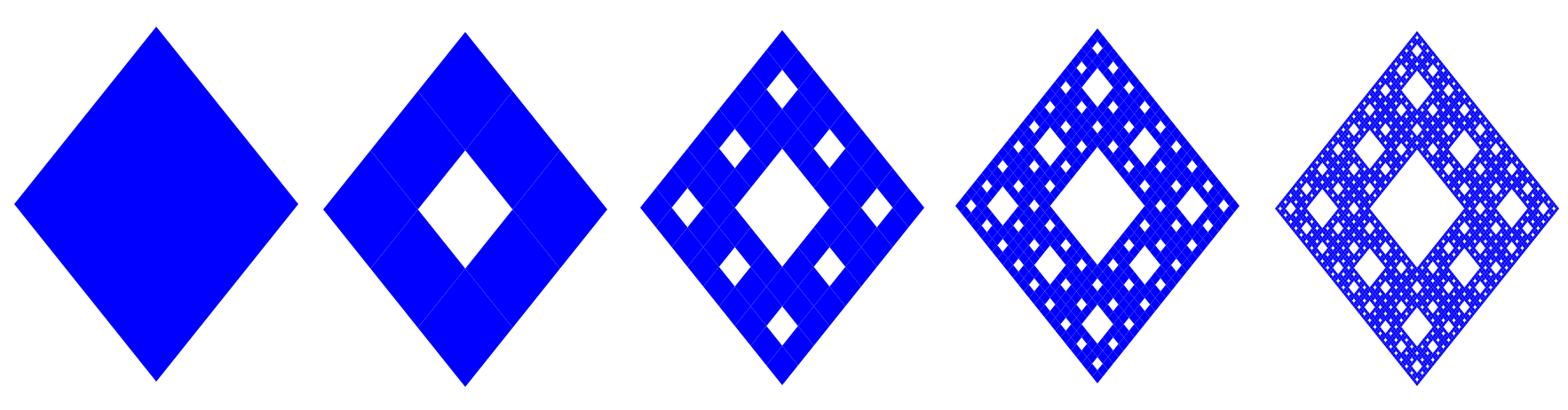
Small note: I use sometimes levels and sometimes iterations, but I mean the same thing. I use the terms interchangeably.
When I talk about levels or iterations, I am talking about what the figure above illustrates.
The most famous Sierpinski fractal is the Sierpinski Triangle. But there are also variations with other shapes and different dimensions. The Sierpinski Carpet, for example, is based on the 1d fractal: Cantor Set and the 3d shape is called a Menger Sponge.
What is a Rhombohedron fractal?
A Rhombohedron fractal is the 3d fractal of the rhombus fractal. It is similar to the Menger Sponge, but instead of a cube, we use a rhombohedron.
But now I am already several steps ahead. First, I tell about making the rhombus fractal, so first in 2d.
Chapter 2
I made the rhombus fractal in Processing.
Choice explanation:
At the beginning of the project, I came across videos by Daniel Shiffman: The Coding Train. I also read online chapter 8: fractals on the Nature Of Code website (https://natureofcode.com/fractals/). This was a good starting point for me to know how fractals are coded because it was well explained step by step. Sometimes you had to figure out some things how he got to it.
Among other things, he worked with p5.js and Processing. I didn’t know Processing yet, so I worked with this. I had first created a fractal tree, mandelbulb 3d point cloud and a Sierpinski triangle following some videos (not just by Daniel Shiffman).
➡ See demos > Processing
When I wanted to make the rhombus fractal, Processing seemed like a good first choice because I had learned to work with it a bit by then.
Very basic knowledge of Processing (Java):
void setup(){
  // executed once
}
void draw(){
  // runs over and over again
}
Inside setup() function, you can use:
windowMove(): move the window where the visual will appear. This is useful in such a way that it will be in a fixed position every time and you won’t have to move it every time you run the script.size(): determine the canvas size.background(): background color of canvas.
The code of a (Sierpinski) fractal consists of some basic elements and you will see these coming back.
Code elements of a Sierpinski fractal
Basic code elements:
- Maximum number of levels
- See figure 1
- Recursive function
- Which will generate the fractal by re-executing itself
- In the function: check if something needs to be drawn or if further calculations are required
- Exit condition
- We can’t keep going to infinity
- Reduction factor
- How much smaller do they get at each iteration? Make a sketch!
- Calculate the new coordinates of the vertices of the smaller shapes
- Difficult step
- In 3d also know which vertices belong to which face
- Change level
- Draw function
- Function to draw a shape is called by the recursive function
If we put that together in some kind of template, we have something like this in Processing (Java):
// constants
int maxLevel = ...

void setup(){
  size(... , ...)
  background(...)

  generateFractal() // recursive function
}
void generateFractal(){
  // draw or calculate something

  // exit condition!

  // change size before calculating new coordinates

  // calculate new coordinates & change level
  // recall function with new coordinates & level

}
void drawShape(){
  // draw shape
}
Create a rhombus fractal
To understand how a rhombus fractal is created, I made a drawing of level 1.
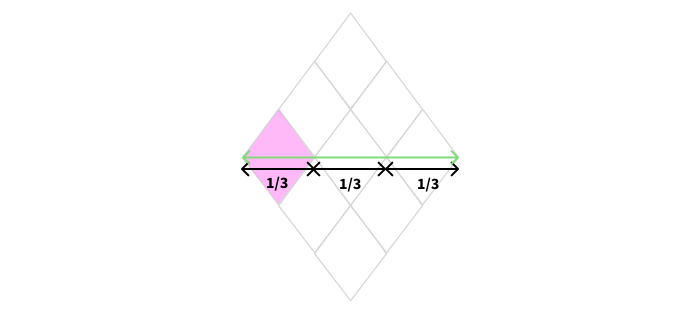
We can see that a new rhombus has become 1/3 smaller in the iteration before it (and also the diagonals). We need this size to determine the new coordinates of the vertices.
I described in detail the various steps to determine the new coordinates of the vertices of the new rhombuses by using the diagonals of a rhombus. You can read it here: determine rhombus coordinates.
I use pushMatrix() and popMatrix() to ensure that we save the current transformation state and go back to the original when we use translate(). That way, you get the desired shape. With translate(), we always go to our new centre to simplify calculations so we don’t repeat ourselves too much.
Final code:
- Version 1: rhombus fractal 1
- Version 2: rhombus fractal 2
Note that in this post, I used different numbers for the levels. There I started with 1, instead of 0. This has to do with the fact that my logic there was slightly different. I started with iteration 1 and placed a maximum number. I added up my iteration each time until I got to the maximum number of iterations. I found this unnecessarily complicated, so I made a second version of it where you start from the maximum number of levels and go down that way each time. Both ways are correct.
Remarks on the code:
- x and y are used to define the centre of the rhombus
- D and d are the big and small diagonals of the rhombus
Chapter 3
Research
I wanted to explore 3d fractals and until now I had focused on 2d (although I had deviated for the mandelbulb). I now wanted to make the rhombus fractal in 3d. For this, I did research on how I could start making it in 3d.
I made the rhombohedron fractal in Python.
Choice explanation:
You had to know that at that time, I still wanted (and believe me, it was still in my head for a long time…) to 3d print this fractal. Even though it’s a side project of this passion project. Since I felt this was important to me at the time, I looked for this first. To print an object with a 3d printer, it must be possible to make a .stl file of it. So I looked for how to use code to make a .stl file from a 3d object.
Using Processing?
(By now, I had already worked in 2d with processing, so hence this question.)
- Processing is not meant to create 3d graphics as I saw in their documentation. They only use box() and sphere() primitives.
- I didn’t find any examples in Processing whether it would be possible to create a .stl file. For python, I found examples.
➡ Answer: no
I found out that you would have to create a 3d point cloud first and then be able to convert this to a mesh object to export this as a .stl file. But then I was thinking about 3d software, like Tinkercad and Blender. After searching a bit further, I found out that you can write in Blender with Python in the so-called Blender’s Python API. So if I can make my fractal in 3d using Python in Blender, then I can export it to stl. This will make the process much easier.
Instead of working in Blender immediately, I worked in Python first, thinking I could then easily import my Python file into Blender.
So that’s the reason why I made the rhombohedron fractal in Python.
From 2d to 3d is a big step (because it adds a dimension and is a lot less easy to imagine), I decided to draw a cube first.
To create these 3d graphics, I started looking for different libraries suitable for this in Python. I found Matplotlib to be an approachable library to work with, also because you can control things with the axes and there was a 3d toolkit.
Matplotlib was not the best choice in retrospect because, according to forums, it is not suitable for rendering 3d graphics, but there were tutorials for matplotlib that were clear to follow.
Coding workflow
Alright, let’s code!
My workflow:
0. understand basics of matplotlib - specific 3d
- draw cube
- draw rhombohedron
- make a menger sponge from cube
- turn rhombohedron into rhombohedron fractal
For my step by step workflow, please read this blog post where I explain my steps in detail.
Below, I note a few more things that were important in this, which may now be a bit more clarified.
Important aspects for making these 3D shapes
To make a 3d shape, you need to find the coordinates of the vertices and determine in which face which vertices occur. To understand it, it is best to make a sketch so you can see it visually. Understanding the coordinate system is pure mathematics. You need to know how the axes are oriented and how to determine the coordinates of a specific point. In the blog post, I have added drawings to provide a clearer insight into how vertices and faces are defined.
If you then have fixed values, like (1, 0, -1). Then this is somewhat annoying, especially if we make fractals out of them. Therefore, we need to make our coordinates flexible. For example instead of (1,0, -1) it is (x + size, y, z - size) where x = 0, y = 0 and z = 0 and size = 1. If the x, y, z changes and it will change anyway, because it changes when generating the fractal, this is easier with flexible values.
The rhombohedron is constructed using formulas I found on Wikipedia. Unlike the cube, where you work with simple numbers, here you have to add vectors.
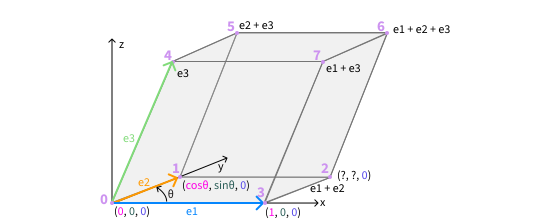
Perhaps I could also have worked with the diagonals, as in my 2D rhombus fractal, but in that case there would be a third diagonal added that is as long as one side of the rhombohedron. This would allow the zero point to be placed in the middle, so that the shape rotates around this instead of around one specific point of the rhombohedron. But I hadn’t thought of that at that time.
The menger sponge was based on a paper I found. Had I not come across this paper, I might not have succeeded. But I did try to figure out and write out all the steps for myself without just blindly copying the code.
At one point in the blog post, I talk about filtering some cubes, namely the middle ones, these should not be shown. This is done based on a triple for loop. See the code again here:
   for dimension_x in range(3):
            for dimension_y in range(3):
                for dimension_z in range(3):
                    if (dimension_x == 1 and dimension_y == 1) or (dimension_y == 1 and dimension_z == 1) or (dimension_x == 1 and dimension_z == 1):
                        continue
Since this may not have been entirely clear, I’d like to post another picture of 27 Lego bricks here. Each cube has (dimension_x, dimension_y, dimension_z) written on it. The top one is the one that would be at the back, and what is at the bottom is the one that will be at the front. If we omit the middle one for all 6 faces of the larger cube, then they meet that particular condition as described here in the code. For convenience, the cubes that are removed in the menger sponge are highlighted in yellow.
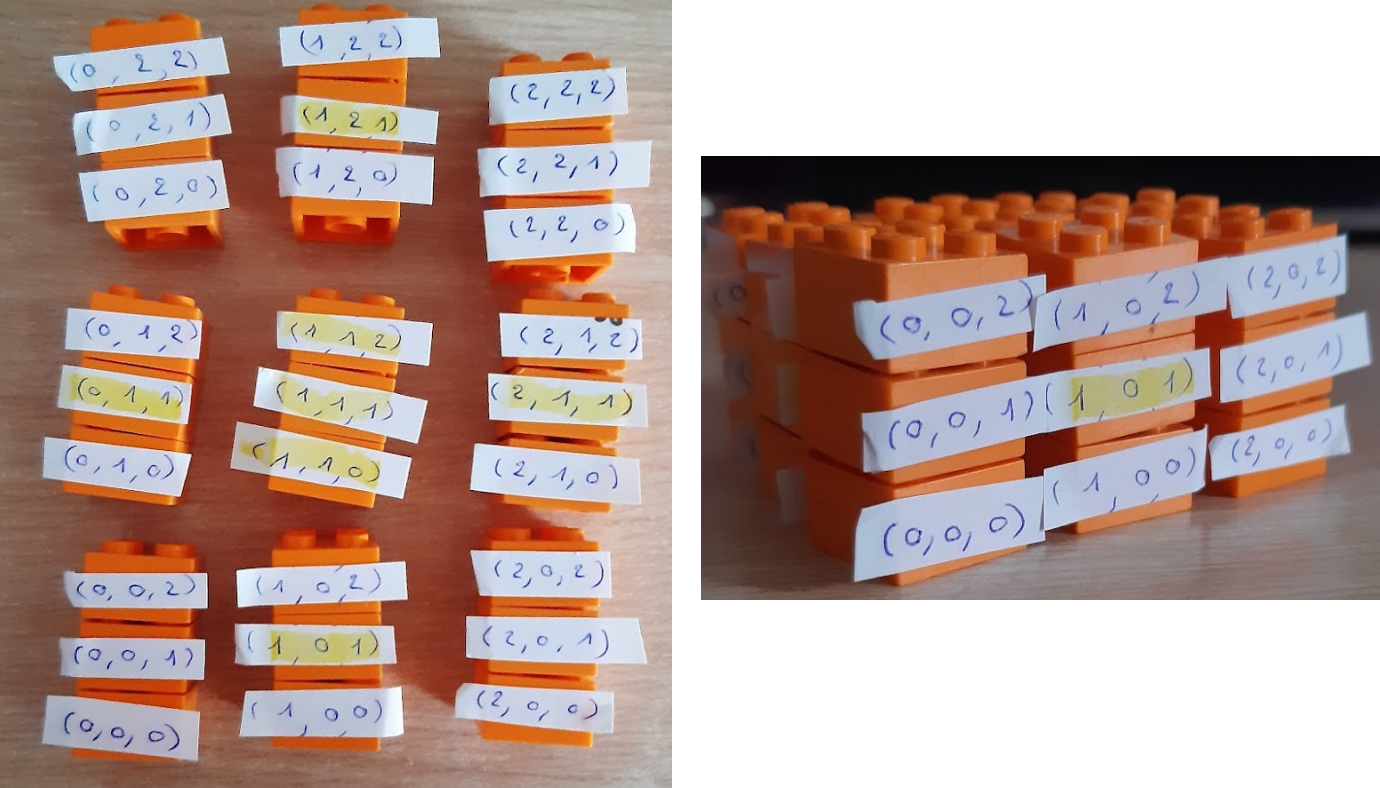
For the rhombohedron fractal, I could reuse the rhombohedron code and the menger sponge code. The hardest part here was determining the new x, y & z coordinates. See blog post part 2.
➡ Final code: demos > Python.
Performance
It was at this point that I also experienced that there is a limit on rendering fractals. I knew rendering fractals could cause performance problems. I asked on forums how I could solve this. I myself thought of removing the faces that are drawn twice because they are neighbours of each other. Or to remove the inside and show only the outside. I didn’t know how to approach this and after asking ChatGPT several times, an answer came out, but didn’t understand how it got there, so decided not to implement that code.
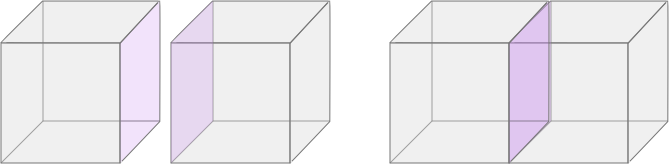
On forums it was said to use shaders & OpenGL, but to start understanding this (especially shaders), it will take me a lot of time and as I would like to add interaction, I decided not to. It would then be rendered faster and I could show more levels, but otherwise it wouldn’t look any different.
I did briefly do the cube and menger sponge with pyopengl (see Github > demos > Python > pyopengl) in combination with pygame in python. On forums they also mentioned using face culling. You only render the faces that are visible in the field of view of the user. So I also tested that with a cube. After coaching moment it came down to the fact that I had already been able to make it in matplotlib and I didn’t need to bother further with that. Just engaging with performance for a short while more, but not making the rhombohedron fractal with pyopengl.
I also thought about Three.js, but I had worked with this before and didn’t want to do that.
Blender’s Pyton API
As I mentioned earlier, the idea of a 3d print kept haunting my mind. So I placed my fractal in blender’s python api.
Oh yes, first another cube, then a menger sponge and then the rhombohedron fractal.
This was actually quite easy, as I had already written the code, only in Blender they work with the module bpy to keep blender informed of this. And I could also omit matplotlib. I could copy and paste the recursive function and the vertices and faces.
See blog post.
Chapter 4
Another milestone of my project was completed! First I did a lot of research on fractals, then I created a 2d rhombus fractal and now I finished making it in 3d. So it was time to add some interactivity.
I was stuck for a while. I had looked up information on interactivity in Python and Blender’s Python API, but I was overwhelmed and didn’t really see how to start interacting until I came across custom panels at some point. I got to know Blender’s UI better from a purely development side by using the scripting tab.
Custom panel - my workflow
I saw people using custom panels to customize & optimize their workflow in Blender. Instead of having to click several times before creating something, they could do it with 1 click. From that idea, I thought of also creating such a custom panel with the things I wanted to change, that way I could put interactivity in Blender.
I have done quite a bit of research on creating such a custom panel and also on custom operators and custom properties as these are associated with creating a custom panel. It did take me a while to understand it, also because I had never worked in Blender before this project. But the videos by Victor Stepanov were a great help.
After experimenting a bit with a cube to incorporate this new knowledge, I took my list of things I wanted to make interactive. First, I made the things that were possible for a simple cube (color, rotation & size). Then I moved on to the fractal code to implement these things and adjust them and add the other elements that I had not yet implemented (acute angle, max level…).
➡ Blog posts about the custom panels that explain more: post 13, post 14, post 15
In the next section, I briefly list what I learned about making a panel and what my experiences are.
Custom panel - what I learned
What I learned at this stage:
- creating a basic panel
- giving a location to your panel.
- creating a layout using row(), column(), box(), split()…
- creating an add-on & integrate it into a new Blender project
- bl_info, register() & unregister()
- creating a custom operator with custom properties inside. For example, when you click on the operator button you can then see a popup dialog with your custom properties inside -> I tried this for a while, but noticed that you had to click twice for the desired result, so I didn’t go into it any further.
- creating PropertyGroups with … different properties in there that you define by their type (e.g. float, int, boolean…)
- Python console -> I know what it is, but didn’t go into that because I could do it without it. Also, I didn’t quite understand how you can test certain things, how you know that you need that particular thing to test.
- Terminal -> I always checked for errors, because they were not always displayed in the INFO. In the blog post, you can read how I dealt with various errors I encountered.
- creating subpanels -> I was curious how to do this, but did not need it for the end result.
- hide Blender interfaces to make fullscreen nicer (hide axes, pivot point, change background…)
3 difficult things at this stage:
- creating a color picker with r, g, b values separated -> but I managed thanks to tutorials.
- rotation changer -> I wanted when a user changes the rotation and then adjust another item that generates a new fractal (and removes the old one), that the rotation is preserved. By taking a copy of the rotation before removing the fractal and then using it when a new fractal is created, I managed to integrate it in the project.
- size changer -> Same as rotation. The size should be kept if there is a new fractal . The shape should not shrink or grow. I tried all sorts of things, tried things people said on forums, but it just didn’t seem to work. I think the problem has to do with the fact that when I create my fractal again I also need the size to generate that fractal in the generate_fractal() function. I did not manage to implement it.
➡ Blog posts about trying to make interactions like the color picker: post 13, post 15, post 17, post 18, post 19, post 20.
MIDI controller
For connecting the midi controller to the project, I found the MidiController add-on that I used to connect my MIDI device in my Blender’s project. Unfortunately, I noticed later that this does not work for the pads. I didn’t delve into this code to find out if I would be able to modify it, so pads can be added like a button. Furthermore, no add-ons could be found that connected midi. Looking at the code, this seemed like a lot of setup work. I thought I could make better use of that time.
The nice thing about linking the midi controller is that you can manipulate multiple items at the same time. It is also easier to change properties than using the mouse cursor.
(The messages come in one by one, but this happens quickly, so our eyes don’t notice).
Reflection
Somewhat I do regret that I focused for a long time on interactivity in blender and didn’t think to go export the rhombohedron fractal model and use it anywhere else.
Although it was said during a coach moment to code it in blender and then use it somewhere else, that didn’t really occur to me, perhaps also because I didn’t know how and didn’t do any further research or asked about that.
I also hadn’t thought further that I would then also implement something of audio, I did know that I would, because after all, this is part of my research question, but I was too focused on interactivity in blender at the time. I think maybe it was due to the fact that after I created the fractal in python I immediately wanted to put it into blender’s python api for 3d printing and then immediately looked at whether you could do interactivity in blender. I had better written out a workflow to see if I could have interaction outside blender as well. Although I did look for interaction possibilities within Python and outside Blender’s Python API… but maybe I jumped on it too quickly when I saw the custom panels and what you could do with them. I had found a way to address interaction and so stopped figuring out how to add interaction.
I might have had the insight to export the model earlier if I didn’t start delving into those custom panels & operators.
So at the last coach moment, I got this insight. For example, that I could import my model into TouchDesigner and start changing things there. It also came up in an earlier coach moment, but then I hadn’t made the link (see in the green box above).
Since there is no more time to learn new things within this timeframe of the project, I continued in blender’s python api.
Chapter 5
My curiosity can hardly stop me from this project just to focus on blender’s python api. I wanted to go back and take a broader look at what the other options were. So I did some research.
TouchDesigner
As told at coach moment, I could import my 3d fractal from blender into TouchDesigner and make adjustments there, I could then also implement audio.
I found 2 helpful videos how to import my 3d fractal model from blender & using a midi operator I can set up my midi device. Then I could read the messages and add interaction to the model.
So it would definitely be possible to apply it in this. Just how I would adjust specific fractal properties such as number of levels, acute angle… I would then have to figure out if this would work in this environment. And also how with audio that when the user turns a control slider for example that the music adjusts.
➡ Blog post: Fractal in TouchDesigner with MIDI control
Python-rtmidi
I also wanted to try if I could modify a fractal property using pads, because it wasn’t possible in the MidiController add-on. For that, I took a new standalone Python project, outside Blender’s environment. I saw the MidiController add-on used python-rtmidi library, among other things. So I looked for some more information on that. I also came across mido library. But python-rtmidi is just a bit faster than mido, so for real-time adjustments, python-rtmidi is more suitable.
I still convert my rhombohedron fractal to pygame & pyopengl first anyway, because it’s better than using matplotlib. I had already created my cube & menger sponge in pygame and pyopengl anyway, so it was just a matter of putting my rhombohedron code in there and tweaking here and there.
Coding is like a boomerang 🪃:
things you once stopped doing always come back.
Since I had already put all my interactions in blender’s python api and this was working, it would be a bit silly to start implementing all those here too. So I chose only to add toggle inverse visibility. I managed to work through a pad!
Changing fractal properties would work here, maybe sound is trickier here than in TouchDesigner. But I haven’t done any research in audio (except audio-reactive projects in touchdesigner).
Inserting a simple python-rtmidi script into Blender, doesn’t work. After testing this, I saw the colorful loader.
Conclusion
So the two mini-experiments (standalone python with python-rtmidi, pygame & pyopengl and touchdesigner) both get you out of blender’s interface. So which would be ideal should I later use this in an installation or as a background to 1 or other music band…
Chapter 6
But despite perhaps I not always made the right choice or workflow, I learned a lot in this project. I have not only learned about fractals, but also learned more about myself.
Working on 1 project for a month without much feedback makes you encounter yourself more often.
I enjoyed studying fractals more closely and trying to understand how they are formed. In the end, it is an algorithm that repeats itself and a difficult part is determining (new) coordinates of the vertices, but a sketch can help with this.
It’s also a lot of searching, which sometimes made me feel like I was getting completely lost on the internet because it’s just so big. You keep finding things!
I think this summary pretty much sums up my blog posts. I hope it is clear. I tried to write more about the choices I made and why, what I learned, with which I was stuck
I hope this brings more structure to this project, because I know sometimes I have researched all sorts of things, but even those are things you take with you even if they didn’t come in handy in this project. I notice when looking back at the various blog posts that indeed, sometimes I went in all directions. But that is normal, because a process does not go in 1 flowing line unless you imitate everything 1 other person has done.
Note: not all details are included in this summary, so to know (almost) everything -> read the blog posts!